Start with a useful render
Open Space Motion and upload an image, or choose an owned image from Library. Use a clear render in which the objects you want to show are visible. A single image gives the model visual guidance; it is not a complete 3D scene.
For a vertical Reel, check the desired aspect ratio before generating. The supplied example is 9:16 and keeps its original proportions. Do not crop away an important object just to fill a vertical frame.
Prepare five different frames
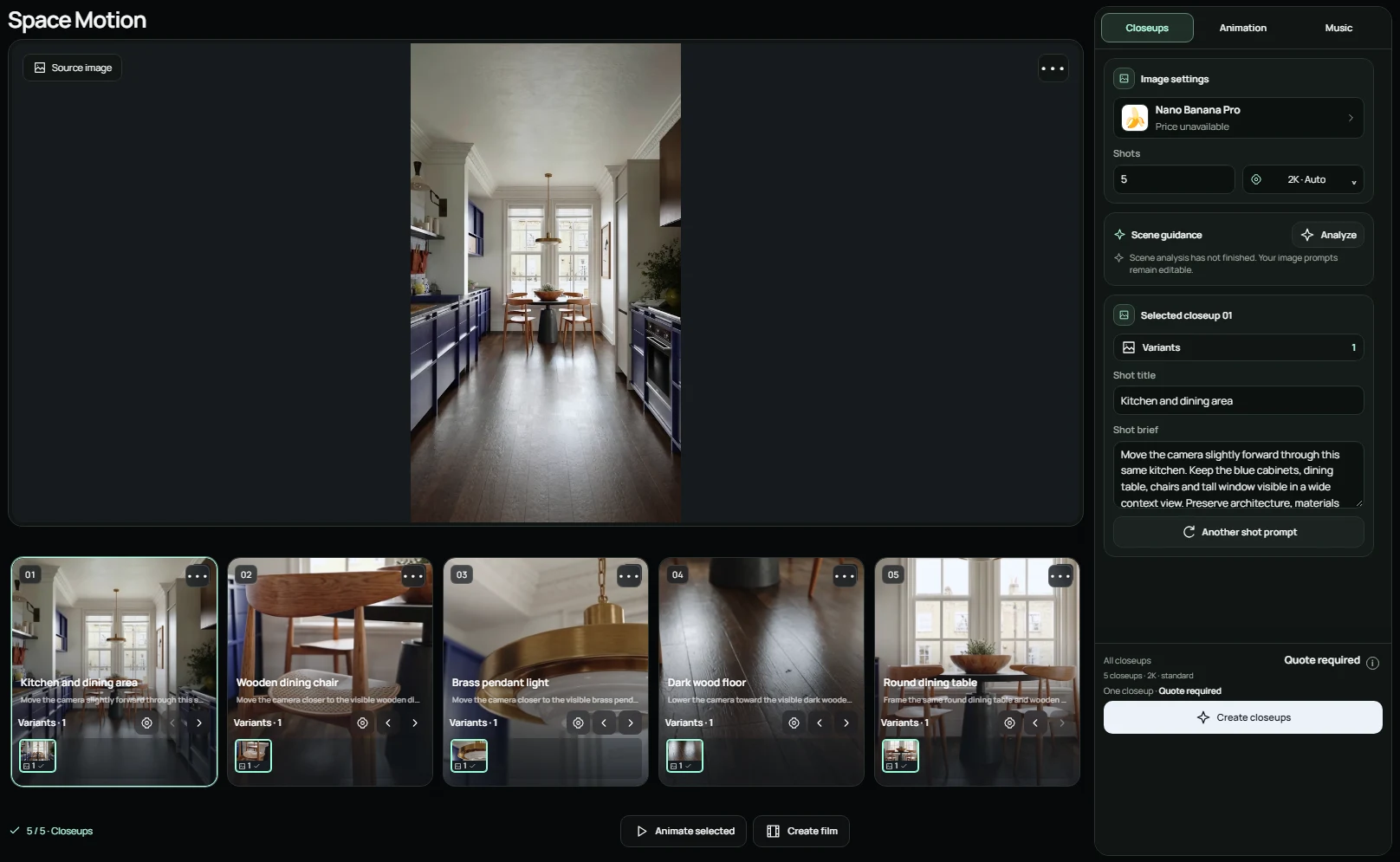
In Closeups, set Shots to 5. Use the image analysis to identify the space and visible subjects, then review the resulting shot descriptions. You can refine the scene description before creating the images.
Aim for a mix: one context view, one medium view, one object detail, one material detail and one final hero view. Five similar wide shots will feel repetitive; five extreme closeups can lose the sense of place.
@Image1 → @Image5
Five frames, five roles
These stills are extracted from the finished example video, not its original generation references. Timings and camera ideas below are an editable proposal, not a measurement of the example cuts.
 01
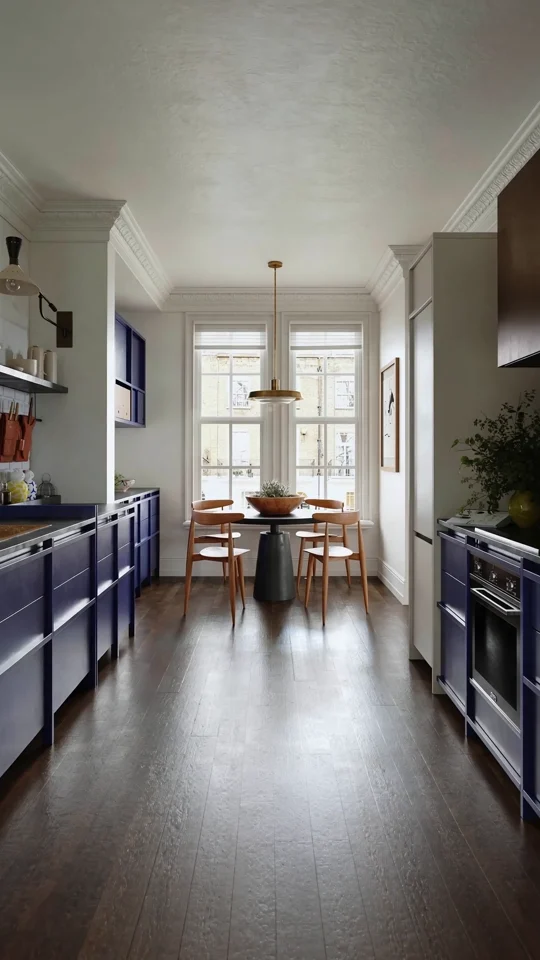
01Suggested timing · 0–1.6 s
Establish the space
The kitchen and dining area introduce the space. Keep enough context to connect the following shots.
Camera idea: Slow push-in
 02
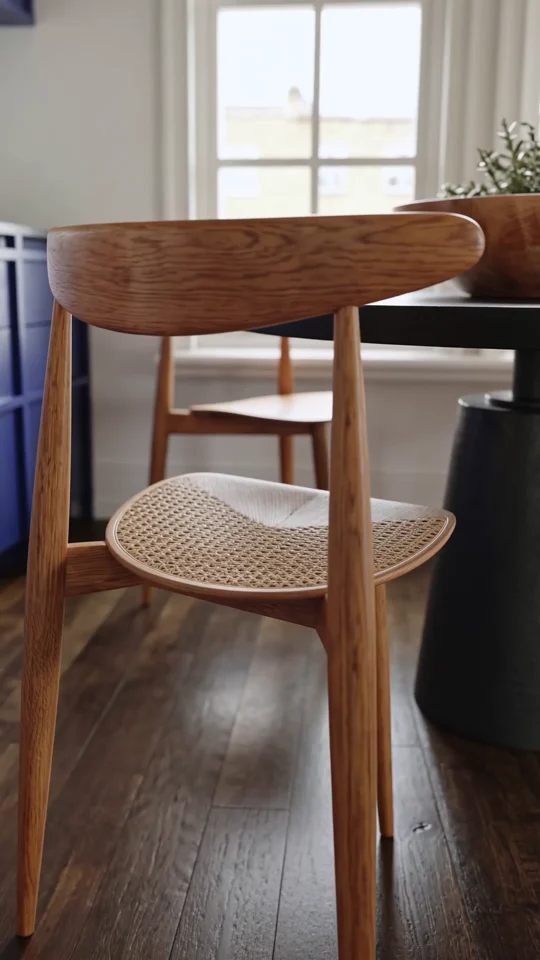
02Suggested timing · 1.6–3.2 s
Bring one object closer
The chair beside the black table brings the furniture into focus without losing its surroundings.
Camera idea: Gentle rise and a small pan
 03
03Suggested timing · 3.2–4.8 s
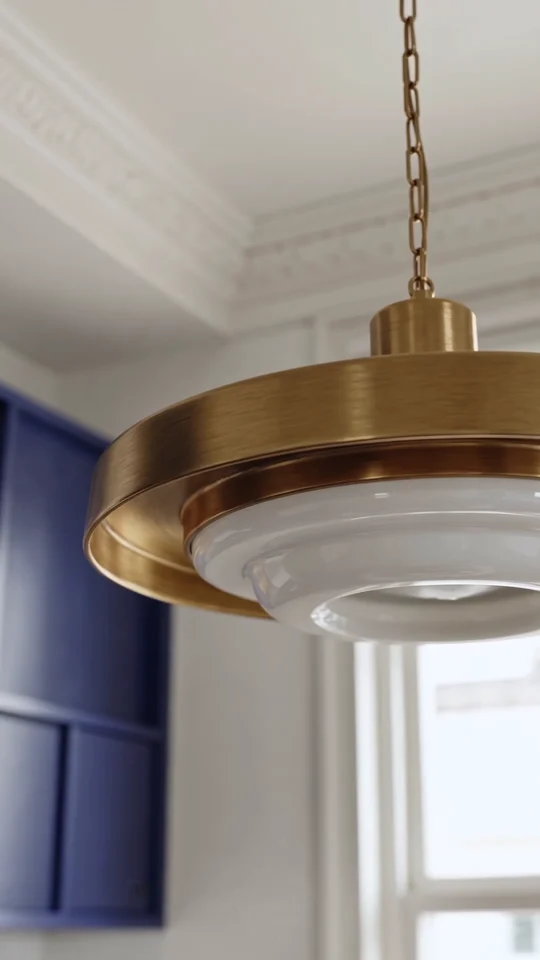
Highlight a detail
The brass pendant becomes the subject. Stay with its visible geometry; avoid inventing its hidden side.
Camera idea: Short, slow arc
 04
04Suggested timing · 4.8–6.4 s
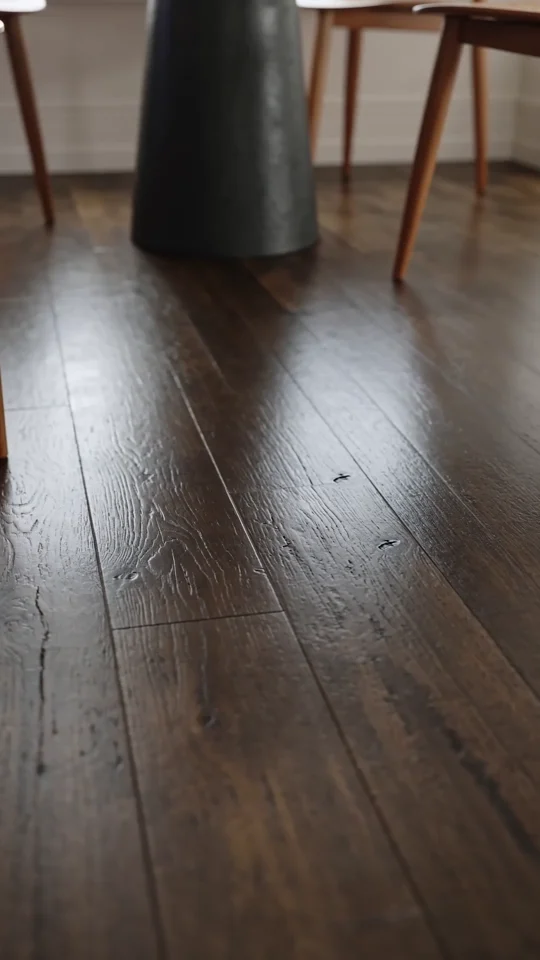
Show a material
The dark wooden floor reveals texture and light. Keep the surface rigid and its pattern consistent.
Camera idea: Minimal movement across the surface
 05
05Suggested timing · 6.4–8 s
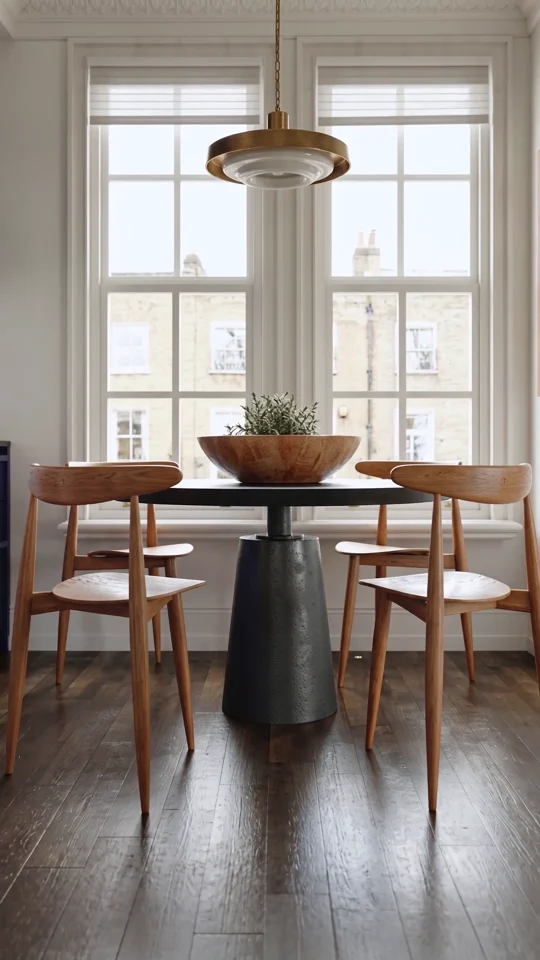
Finish on the main subject
The table and chairs against the window close the sequence. End with restrained movement and a short settled finish.
Camera idea: Slow pull-out
Tell the camera where to go
Open each shot and refine its brief. Name the visible subject, the framing and the camera position. “Move the camera closer to the visible pendant light; show it in a medium close shot” is more useful than just “beautiful lamp”.
Keep materials, lighting and the room layout consistent. Request only small angle changes around details whose geometry is visible. A new view is generated, so inspect it before animating.
A useful image brief
Show and copy the prompt
Move the camera closer to the visible main object and frame it in a medium shot. Preserve the exact room, object design, materials and lighting from the source image. Keep enough background to identify the same space. Do not add furniture or reveal invented hidden geometry.Generate and check the images
Choose an available image model, size and quality. Review the displayed cost and create the closeups. A ready image can be inspected while other frames are still processing.
Compare each result with the source. If a room, object or material changed, revise only that shot and regenerate it. Select the intended image variant in each card. Reorder the five cards before preparing the video.
Build one complete clip
Open Animation and choose Seedance Special with a supported reference model. Set an 8-second duration for this example and check the five image references in their current order.
The scenario connects @Image1 through @Image5 with individual camera instructions. Keep each plan independent and use simple cuts. The timing below is a request to the model, not a frame-exact editing guarantee.
If you need precise control of every cut, choose Individual clips instead. Animate the selected shots, then assemble and trim them in the video editor.
An editable five-shot video prompt
Use this structure with your own five selected images. Replace the subjects and camera directions to match them. If the duration changes, update the timings too.
Show and copy the prompt
Create one calm 8-second architectural presentation video using the five references in their stated order. Each reference is a separate shot with its own camera movement. Move slowly, smoothly and with a small amplitude. Use simple discreet cuts between shots. Do not connect different viewpoints with a continuous camera flight. No morphing, geometry blending, invented intermediate frames or transition effects. Preserve visible objects, materials, light and geometry. Keep architecture and furniture still. Stabilize the camera; no shake, flicker or sudden acceleration.

@Image1 (0–1.6s): A context view of the kitchen and dining area. Slowly move the camera forward.

@Image2 (1.6–3.2s): A medium view of the wooden chair beside the black table. Rise gently while making a small pan to the right.

@Image3 (3.2–4.8s): A close view of the brass pendant light. Make a short, slow arc to the left without revealing hidden surfaces.

@Image4 (4.8–6.4s): A close view of the dark wooden floor. Use nearly imperceptible movement and preserve its texture.

@Image5 (6.4–8s): The dining table and chairs against the window. Slowly move back, settle gently and end with a brief still moment.

Keep each shot’s movement steady up to its cut. The next shot starts immediately with its own smooth motion. Do not accelerate to reach the next reference.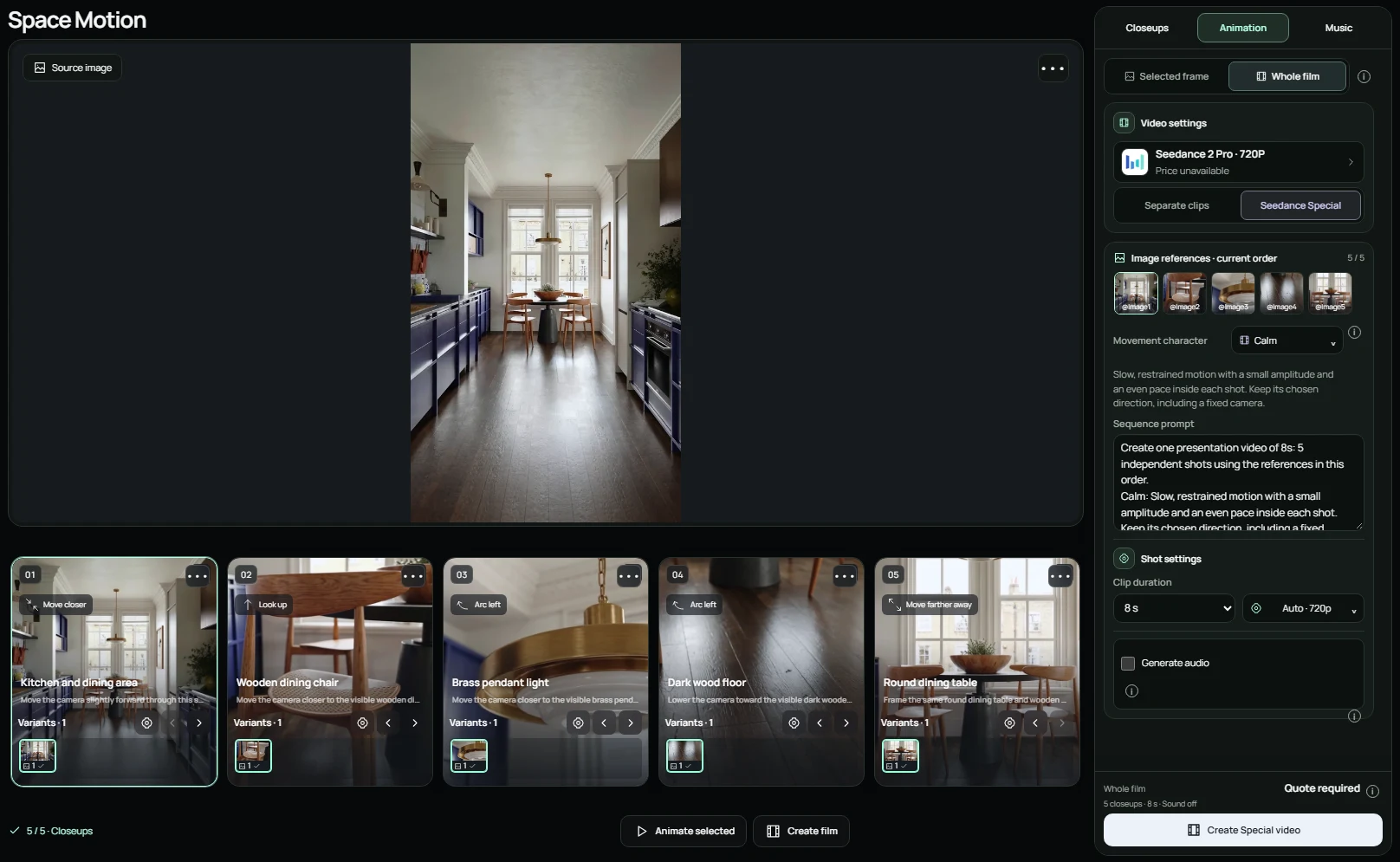
Choose movement, sound and the final quote
Choose the movement character that suits the presentation. Fine-tune the camera direction for individual shots; the character changes the pace and amplitude, rather than replacing your chosen direction.
Generate Audio is optional in supported Special mode. It adds an instrumental direction matching the clip duration and movement character. Review that text and the updated quote before starting.
Check the actual model, duration, resolution and total coin quote. Opening this guide, choosing the example or preparing a draft does not start a paid generation. Only the generation action submits the task.
Four movement characters
Calm
Small, steady camera moves for a restrained presentation.
Dynamic
A livelier but even pace, without sudden zooms or whip pans.
Micro motion
Almost still: useful when a fine texture or small detail should hold the frame.
Gentle approach
A soft approach when no direction is specified; explicit per-shot directions remain in place.
Review and download
Watch the complete result, including every cut, at normal speed. Check straight edges, surface texture and the start of each camera move. Regenerate a faulty image first when the underlying frame is wrong.
Open the video result and choose Download. For a different pace or precise final pause, send the available clips to the video editor and adjust the timeline. Keep the original project so its references and prompts remain available.