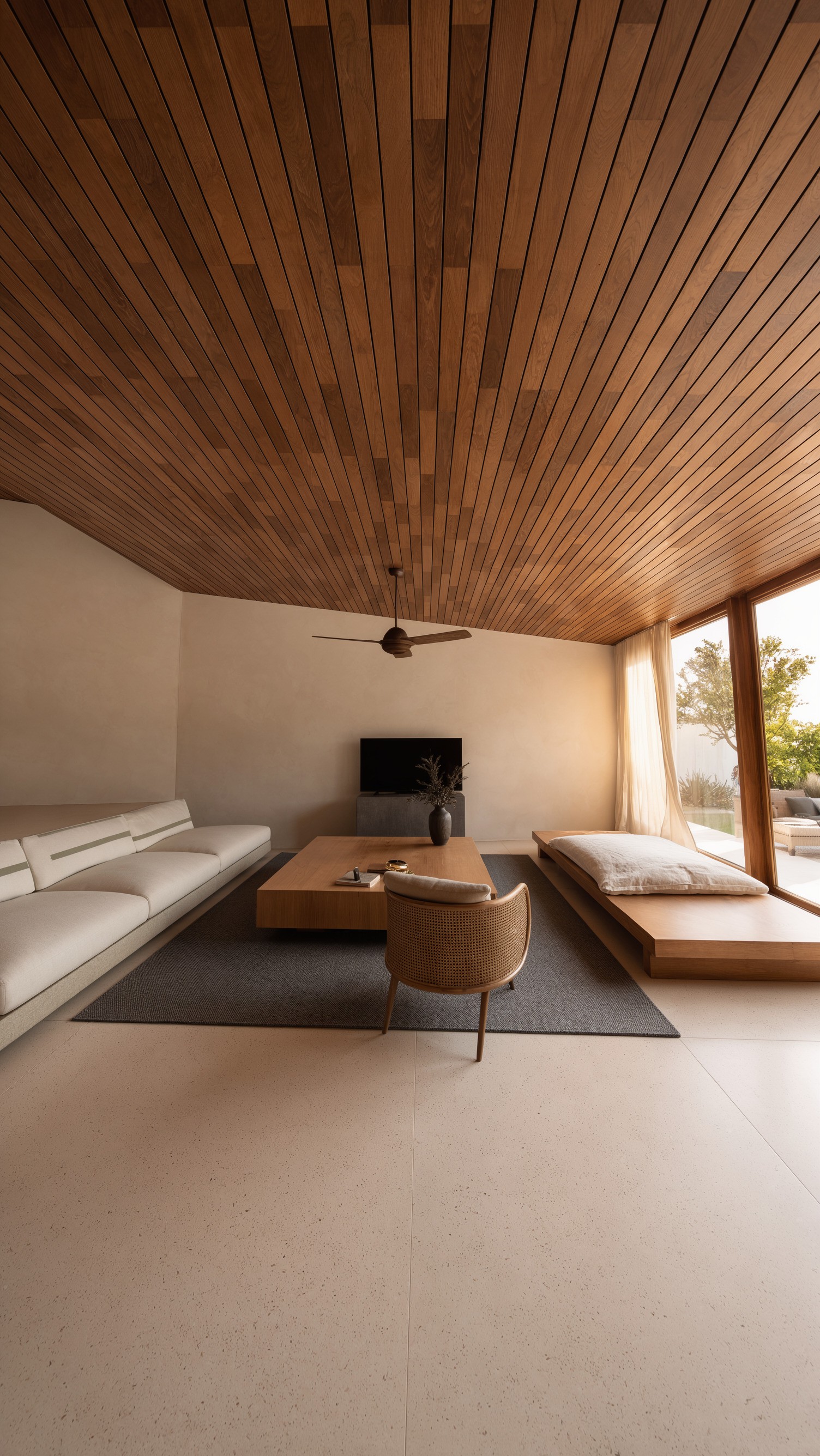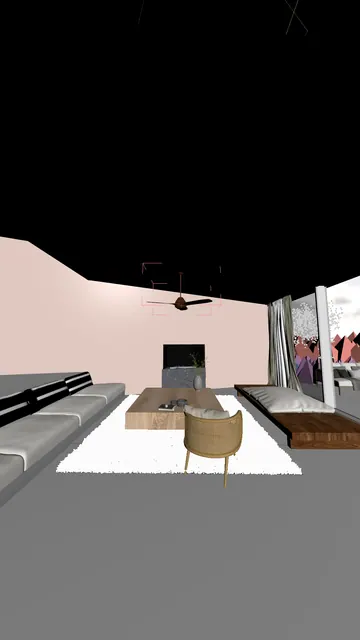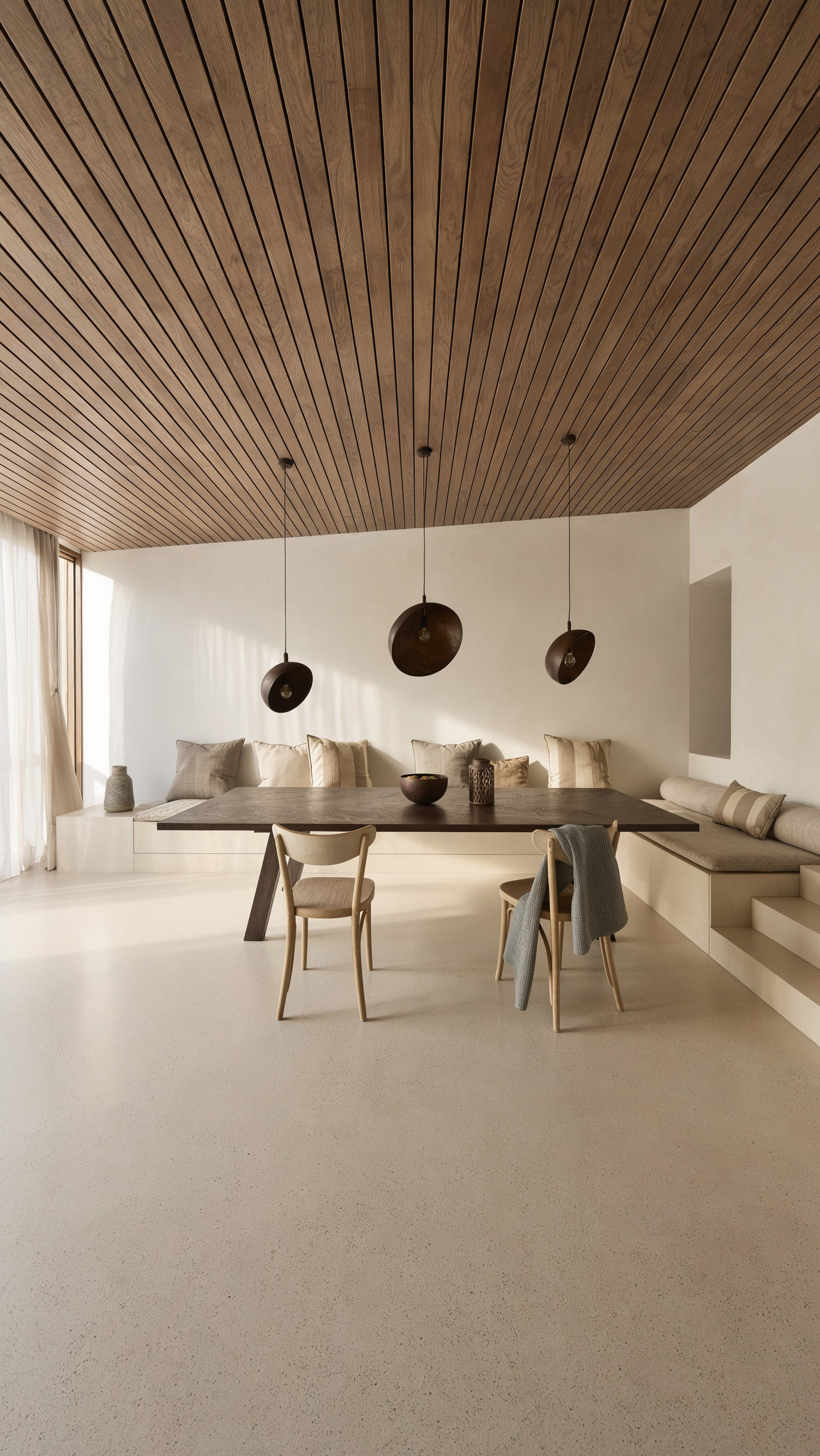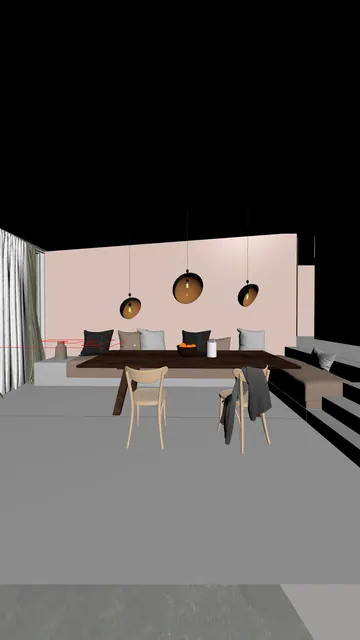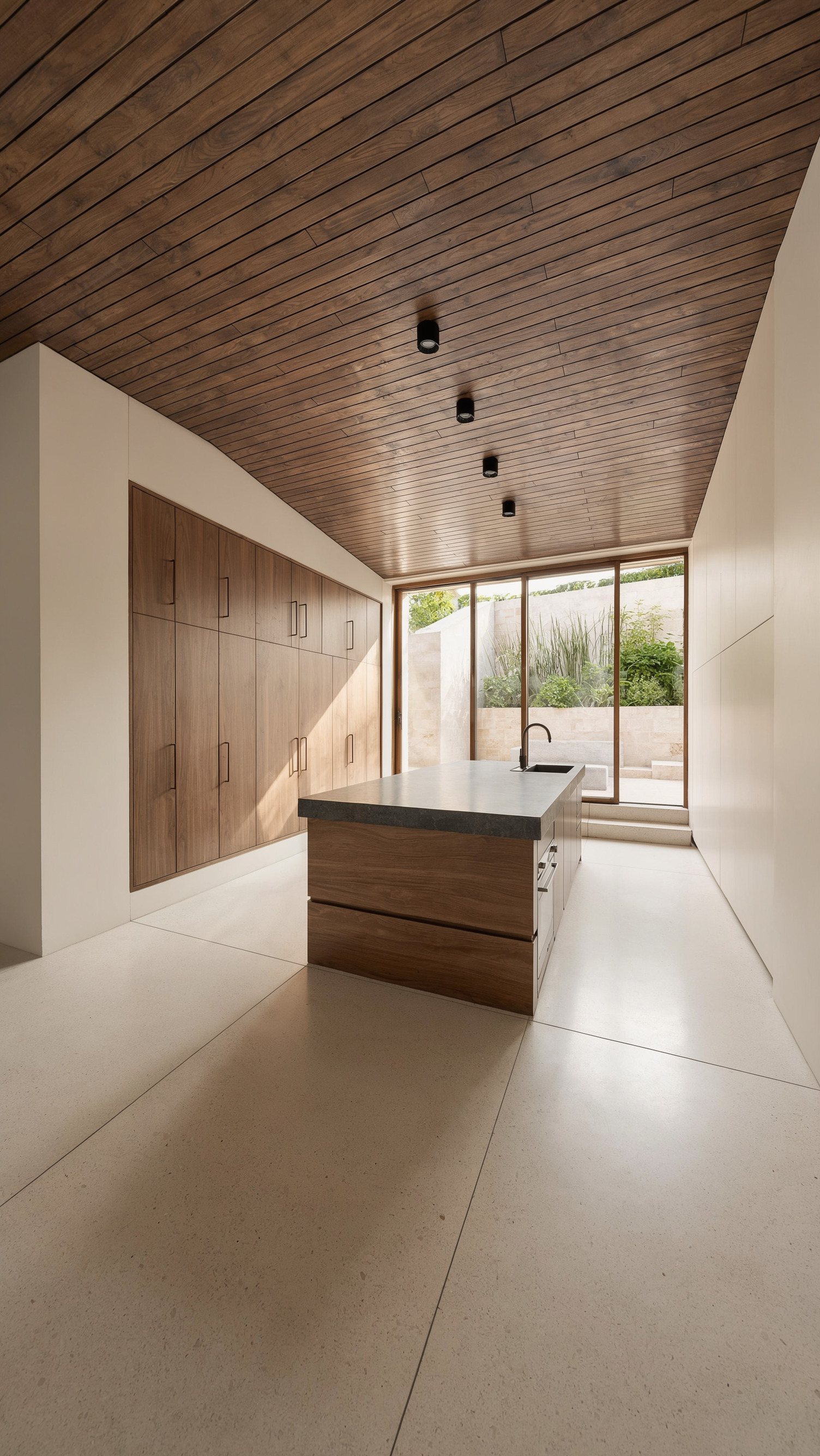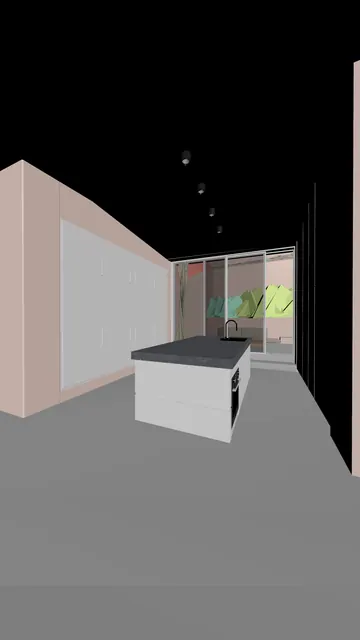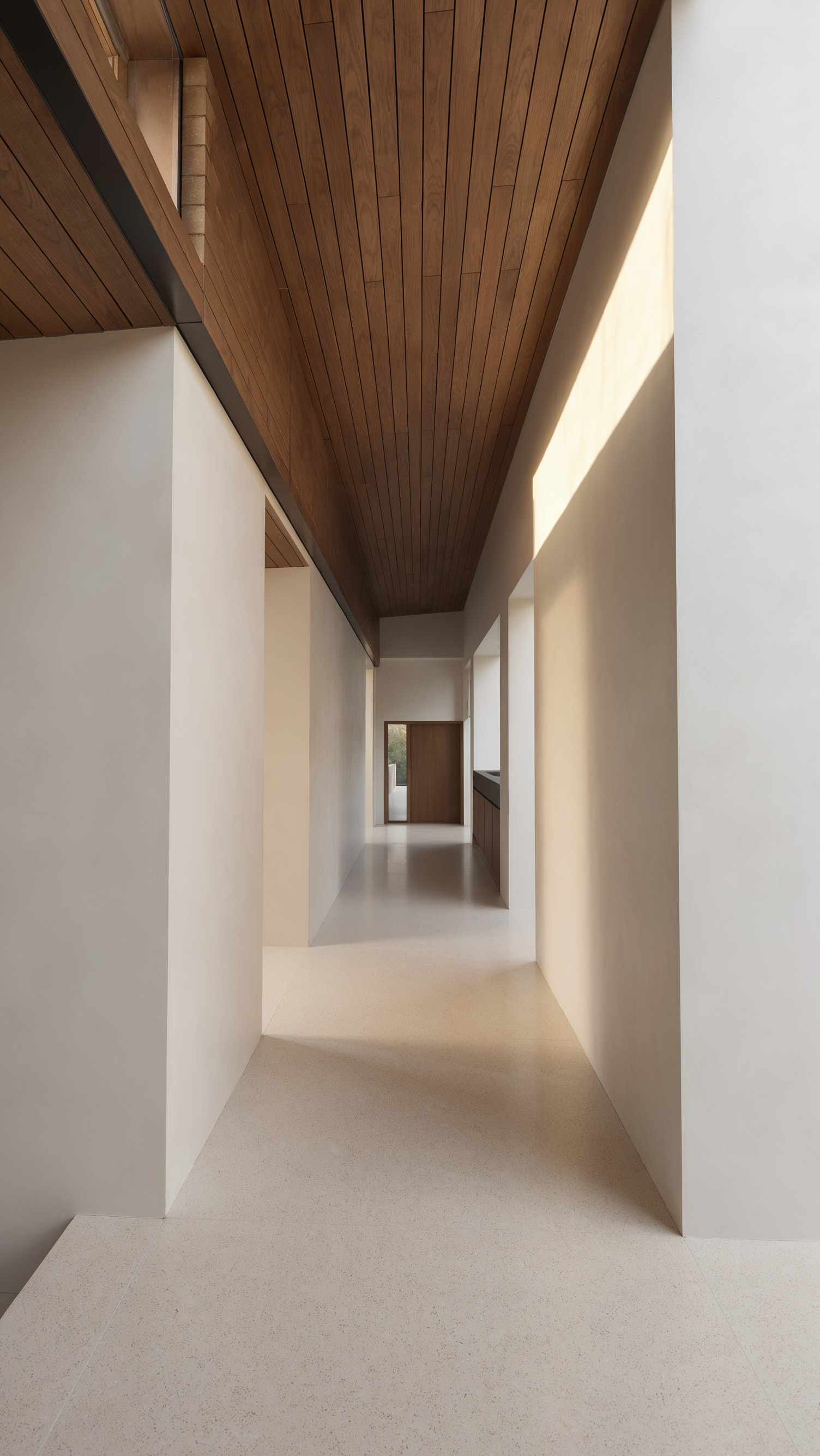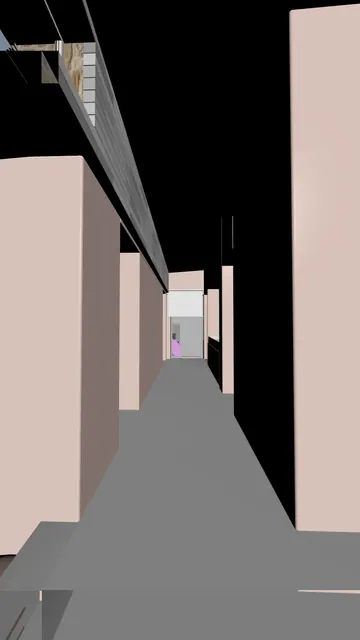
1. Prepare the scene and connection
You need a prepared 3ds Max scene, local Codex and a connected 3dsmax-mcp server. Follow the server repository’s installation instructions. Ask the agent to read the scene name, units, cameras and animation range. Continue once it returns real information from Max. Registering MCP alone does not confirm access to the scene.
2. Build a continuous route
Save a new scene version. Route: pool → open entrance → living room → dining area → kitchen → corridor → bedroom → terrace exit → aerial rise. Use existing rooms and open doorways. The camera must not cross walls, glass, furniture or the roof.
Camera brief
Work in my open 3ds Max scene using the connected MCP. Build one continuous camera for a 15-second architectural walkthrough, not a montage of separate cameras.
First read the scene name, units, renderer, cameras and animation range. If several Max instances are open, identify the intended scene. Save a new scene version without overwriting the original. Preserve existing geometry, materials and renderer.
Inspect the actual floor plan and openings. Route: pool terrace → central open entrance → living room → dining area → kitchen → connecting corridor → bedroom → open terrace exit → exterior aerial rise. If a room is absent, use the real connected rooms instead of inventing openings.
Use one camera, 30 fps, frames 0–449 inclusive, 1080 × 1920, 9:16. Indoors start around 1.5–1.6 m high with a moderately wide lens, adjusted to scene scale. Keep verticals and horizon level. Never cross walls, glass, furniture or roof. Begin the final rise only after reaching the exterior.
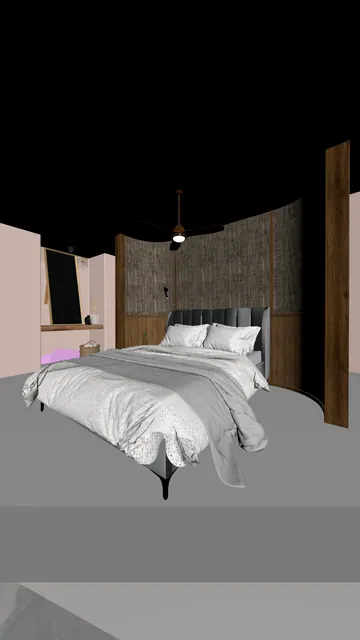
Use smooth spatial curves and continuous rotations. Avoid hard turns, stops at every key, camera cuts, roll, sudden acceleration and speed ramps. Inspect door clearances and the kitchen island, with extra frames around every turn and threshold. Fix collisions before export.
Export a frame-based viewport preview, not a real-time screen recording: exactly 450 frames / 15 seconds at 30 fps. Export eight keyframes from that same camera in order: K01 pool, K02 entrance, K03 living, K04 dining, K05 kitchen, K06 corridor, K07 bedroom, K08 aerial. Choose the appropriate frames for the actual route; record each frame number and frame/30 timestamp in manifest.csv. Do not reposition the camera to make separate keyframe views.
Deliver the new .max scene, a 15-second MP4 preview, K01–K08 images, manifest.csv and a short report of route checks and any limitations.
3. Export video and keyframes
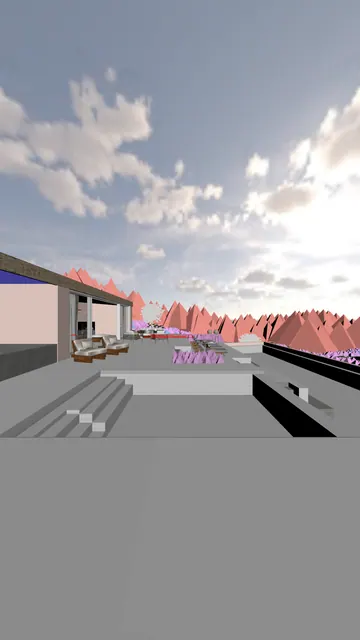
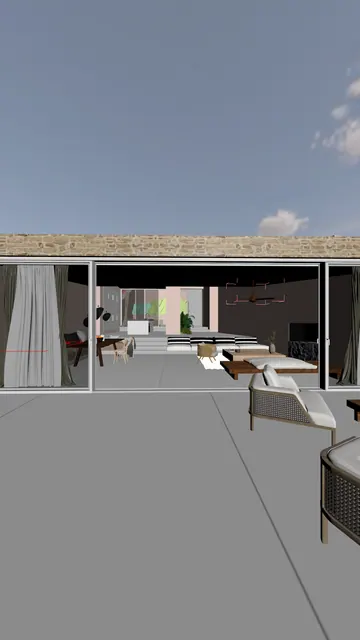
Set 30 fps, frames 0–449 and 1080 × 1920. That is 450 frames, or 15 seconds. Indoors, start around 1.5–1.6 m high with a moderately wide lens. Check smooth movement and rotation along the whole path. Export the viewport frame by frame, not as a screen recording; the square at the top is only for comparison.
| Reference | Frame | Time |
|---|---|---|
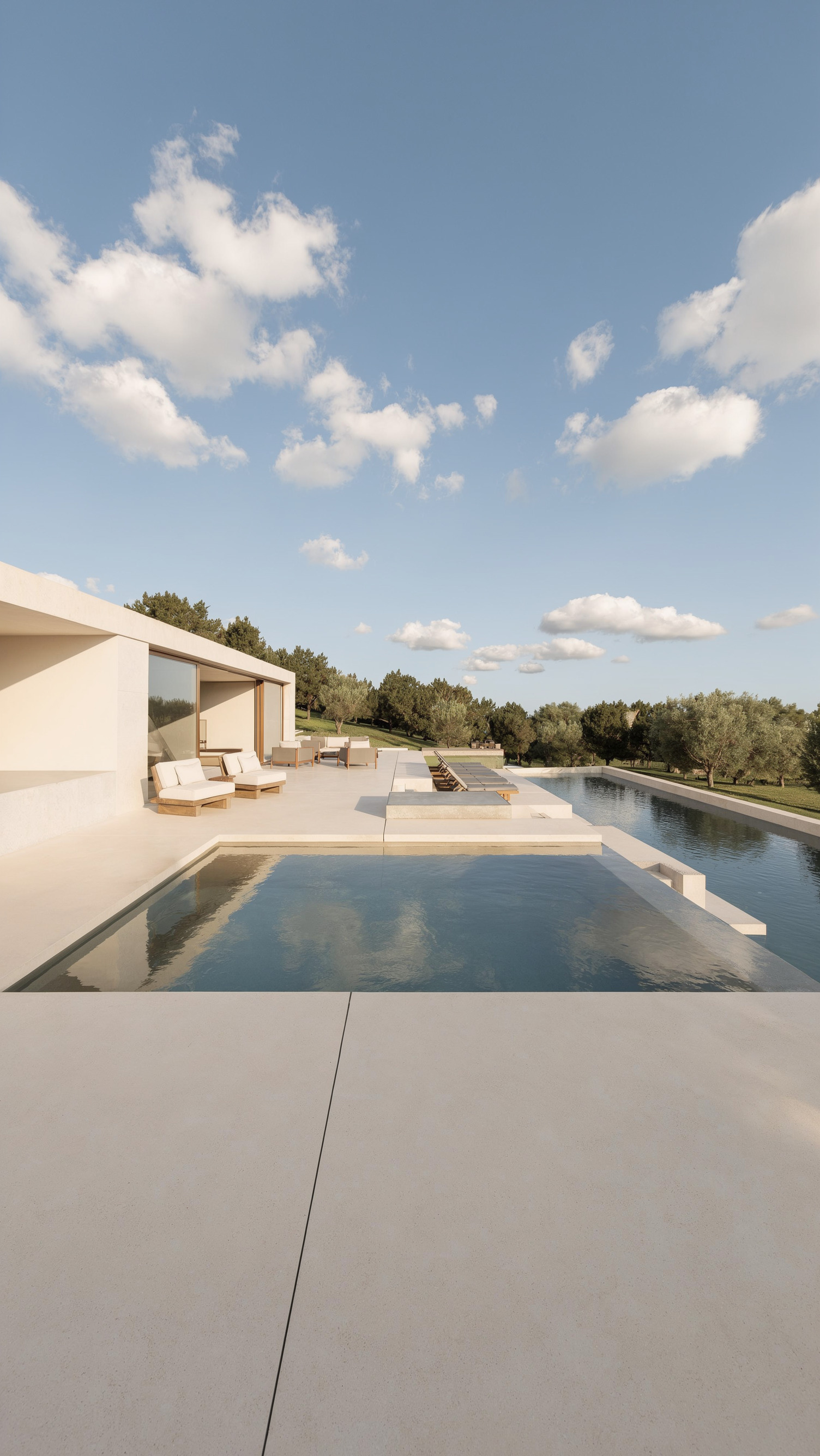
| @img1 · Pool and terrace | 0 | 0.000 s |
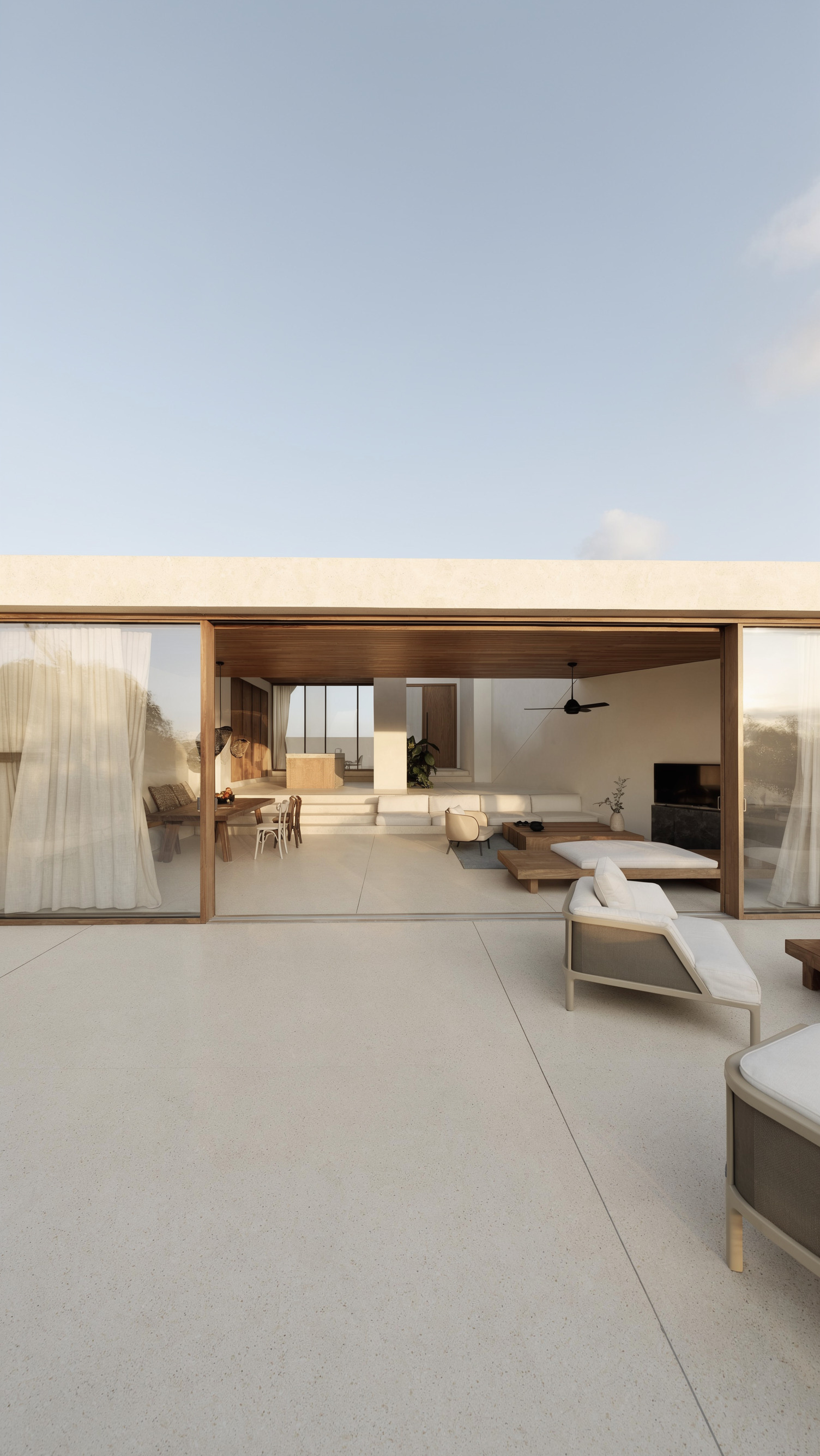
| @img2 · Terrace entrance | 50 | 1.667 s |
| @img3 · Living room | 95 | 3.167 s |
| @img4 · Dining area | 160 | 5.333 s |
| @img5 · Kitchen | 195 | 6.500 s |
| @img6 · Corridor | 235 | 7.833 s |
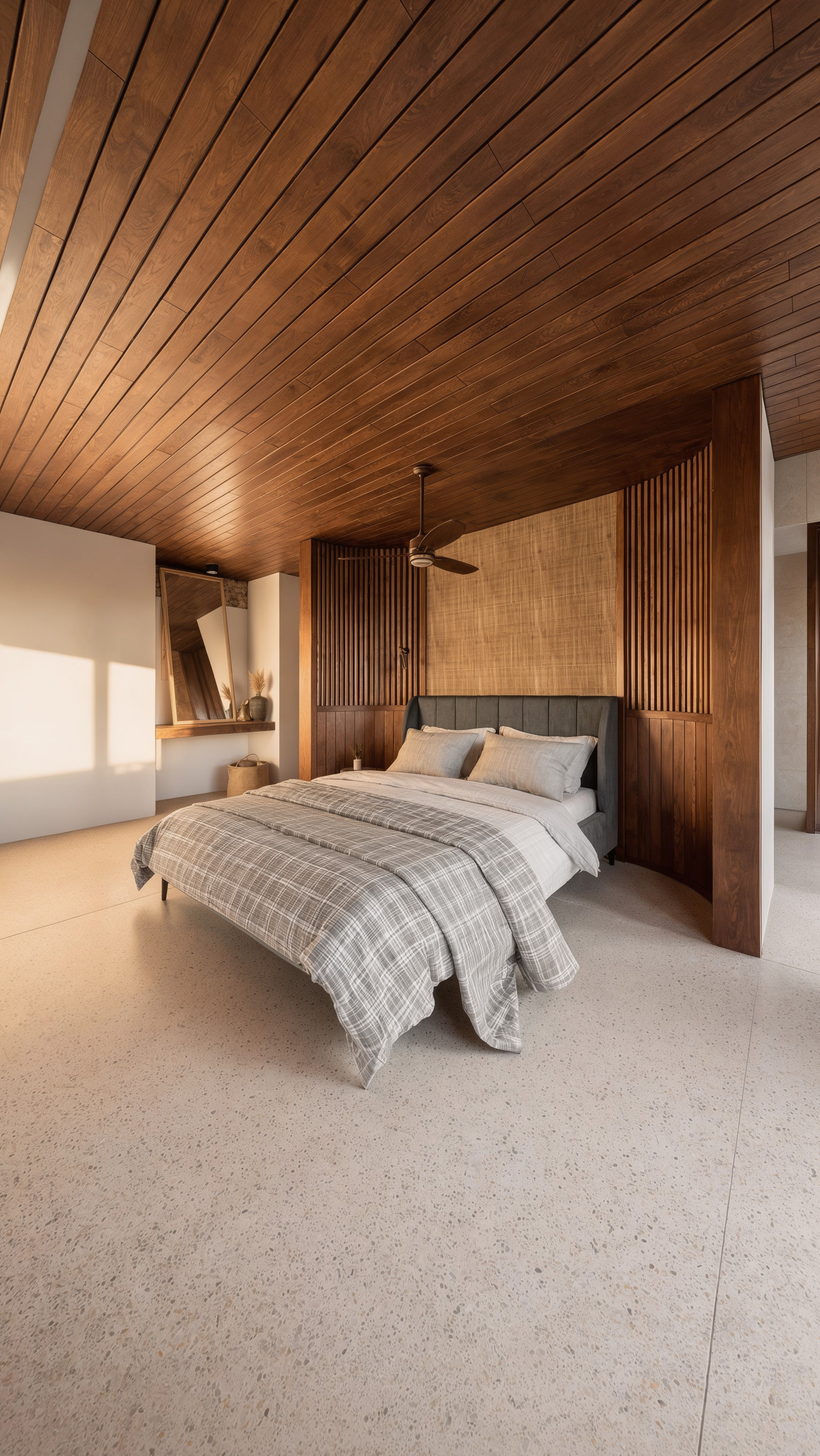
| @img7 · Bedroom | 275 | 9.167 s |
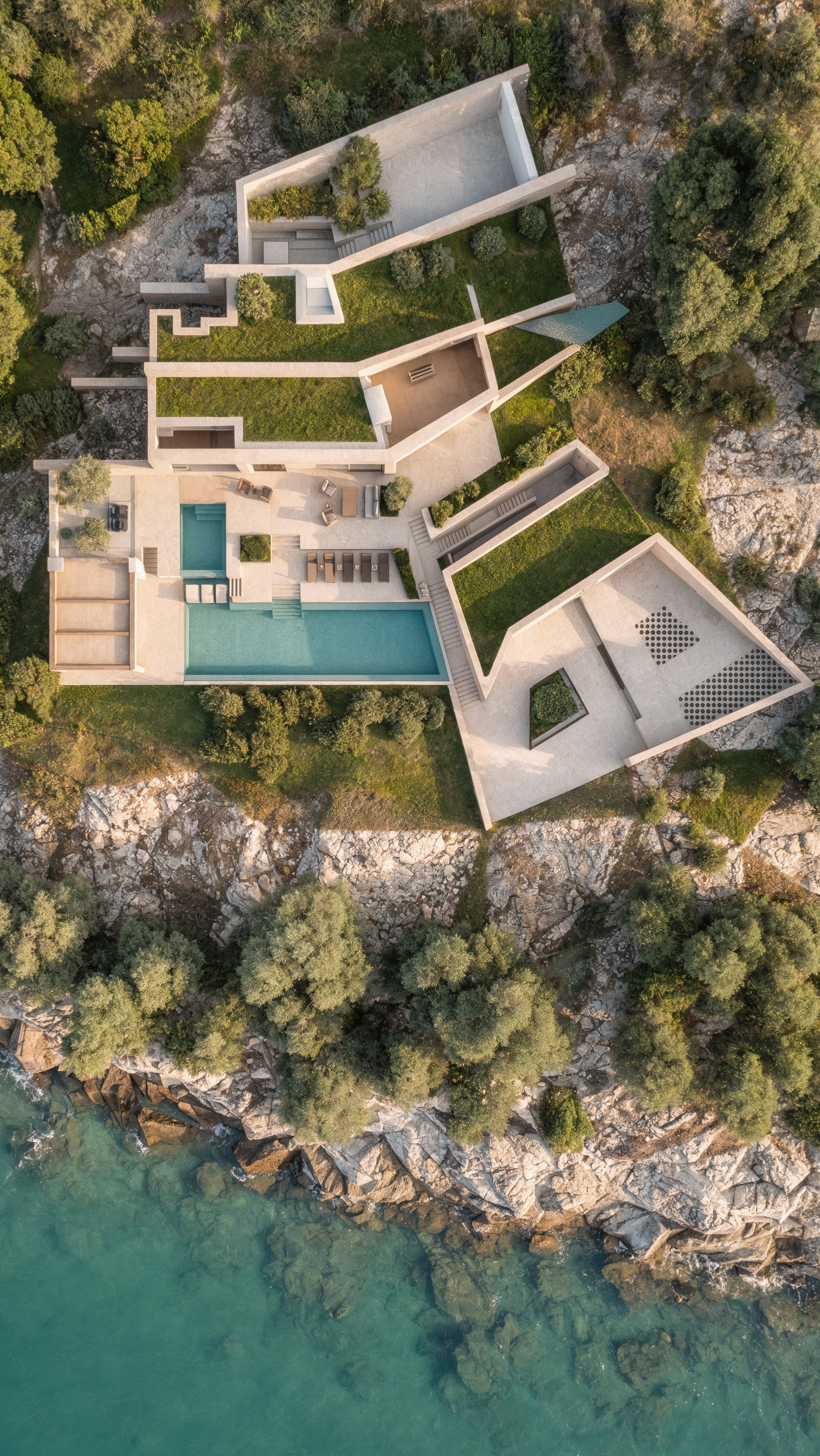
| @img8 · Aerial view | 449 | 14.967 s |
4. Create a reference series
In Generate Image, choose an available Nano Banana model with image editing. Upload the current K01–K08 frame, then choose 9:16 and 2K if supported. Preserve geometry and camera; improve materials, light and detail. The first approved render can serve as an additional style reference. The prompts below remain in English to reproduce the example.
In Nano Banana prompts, @img1 is the current viewport frame and @img2 is an optional style reference. In the video prompt, @img1–@img8 are the full series and @video1 supplies the movement. Select the corresponding files through @ in the editor.
5. Transfer the movement to video
In Generate Video, select Seedance 2.5 Pro. Add the viewport to Motion Transfer / video references, followed by the eight finished images in order. Choose 15 seconds, 9:16 and an available resolution. Video defines movement; images define appearance. Insert labels from the @ picker, then check the source duration and total price before generating.
Video prompt
Re-render @video1 as a photorealistic walkthrough of the SAME villa. This original 15-second viewport is the master camera shot. Output one uninterrupted 15-second vertical 9:16 take.

Match source time t throughout: camera position, orientation, height, field of view, speed, turns, perspective and doorway crossings. Preserve the actual connected room layout. Show intermediate travel, passing wall edges and foreground occlusions with coherent 3D parallax. Never replace travel with image transitions. No holds, extra orbits, slow motion or speed ramps.

These are checkpoints WITHIN ONE CONTINUOUS SHOT, not separate shots. The source video remains authoritative between them:
0.000–1.667 s: @img1 defines the pool and terrace finish. Follow the source terrace movement and gradual turn toward the open glazed entrance styled by @img2. Reach the entrance-facing view at 1.667 s; do not hold the opening image.
1.667–3.167 s: continue through the @img2 entrance into the living room styled by @img3. Visibly cross the threshold and reach the living-room view at 3.167 s.
3.167–5.333 s: follow the rightward source turn from @img3, past terrace glazing toward the dining table and three pendant lights styled by @img4. Reach the dining view at 5.333 s without a cut. Preserve the moving video viewpoint, not the reference image's frontal viewpoint.
5.333–6.500 s: move from @img4 across the shallow steps toward the raised kitchen and island styled by @img5. Reach the kitchen view at 6.500 s.
6.500–7.833 s: follow the source left turn around the kitchen partition into the narrow corridor styled by @img6. The partition and doorway edges slide past the lens naturally. Reach the corridor view at 7.833 s.
7.833–9.167 s: travel through @img6 and turn right through the bedroom opening. Reveal the bed styled by @img7 progressively, reaching the bedroom view at 9.167 s.
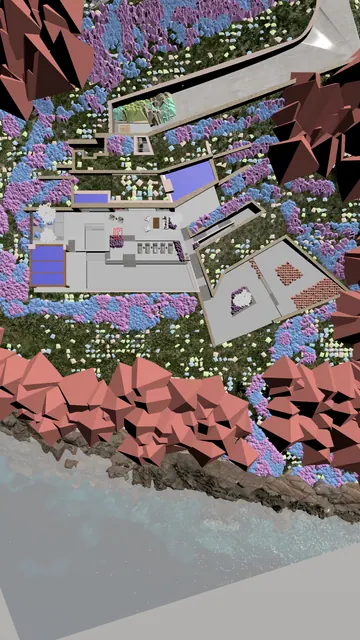
9.167–15.000 s: retreat through the bedroom's existing open terrace glazing as in the source. Only once outside, rise, pull away and tilt down continuously. @img8 defines exterior materials, green roofs, pool, vegetation and rocky coastline. Reach the high aerial viewpoint at 14.967 s. Show the whole exit and ascent; never jump between images or cross the roof.

@img1–@img8 define finished materials, furniture appearance, daylight and landscaping ONLY. They are not separate shots, morph keyframes or replacement camera views. If a reference differs in viewpoint or placement, preserve the video's camera, architecture, openings and spatial arrangement; apply the reference finish to that geometry.

Warm timber ceilings, pale stone floors, natural fabric, consistent soft daylight and reflections. Replace black or untextured viewport surfaces and pink proxies with finished materials and natural foliage. Keep architecture, furniture and lamps rigid. Only curtains, subtle pool ripples, existing ceiling fans and foliage move gently.

No cuts, dissolves, wipes, hidden edits, teleportation, photo interpolation, morphing rooms, melting geometry, sliding furniture, flicker, flashes, black frames, people, text, logos or viewport overlays.
The video prompt is adapted to the 4,000-character limit. The original extended version remains in the ZIP.
6. Review and assemble the tour
Review doorways, turns, the island, the bedroom exit and the final rise. References do not guarantee exact camera replication. If the route breaks, simplify the motion or correct the viewport. Use Video Editor to trim the result, add audio and export the finished tour.